
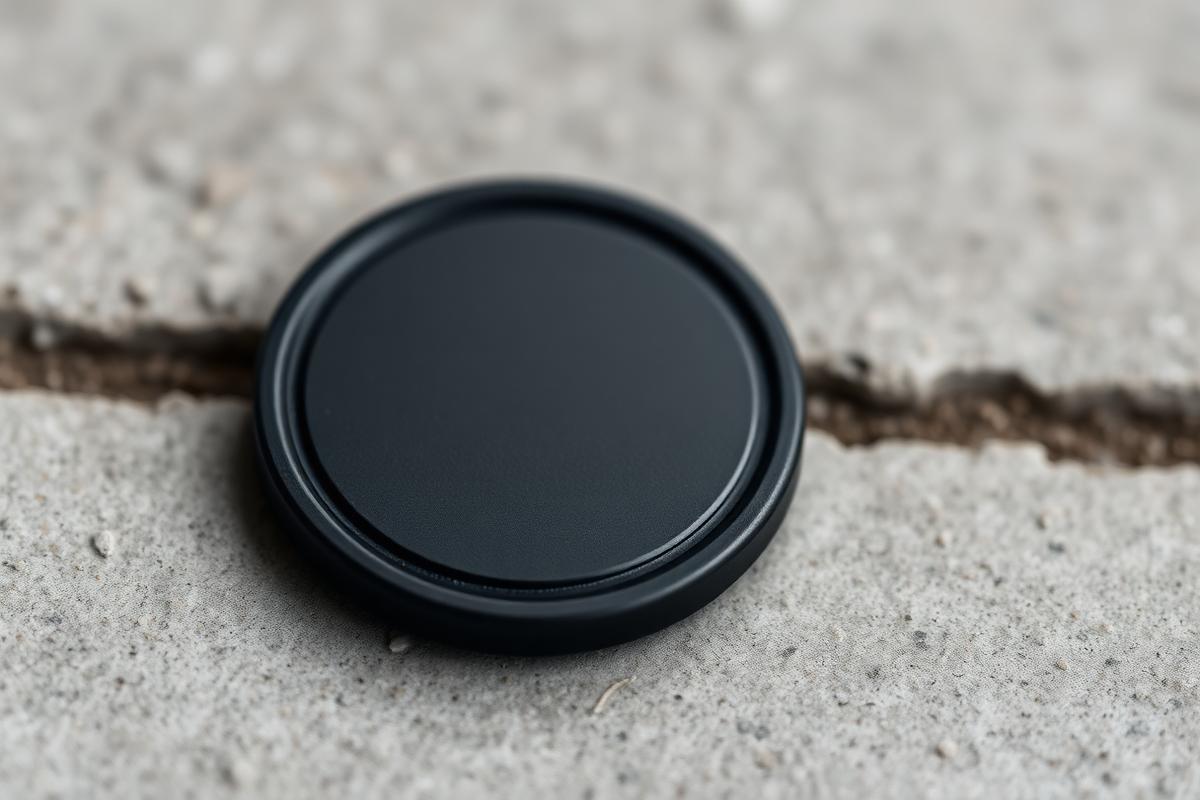
If you’ve just picked up a custom NFC tag from layerevo3d, you might be wondering exactly how it works and how to get it running on your phone. The good news: you don’t need any technical skill to set up an NFC tag — the whole process takes a couple of minutes and works the same way whether you’re using an iPhone or an Android device. Here’s the complete step-by-step guide.
What You’ll Need
Before you start, make sure you have:
- An NFC-enabled smartphone (standard on iPhone 7 and newer, and on the vast majority of Android phones from the last several years)
- Your NFC tag — built into your layerevo3d NFC Tag, Ammo Case, or Lithophane
- A free app called NFC Tools, available for both iOS and Android
Step 1: Download the NFC Tools App
Head to the App Store (iPhone) or Google Play Store (Android) and search for NFC Tools by Wakdev. It’s free to download, with optional paid upgrades for advanced features most people won’t need for everyday use. Once installed, open the app — your phone will likely ask for permission to use NFC, which you’ll need to allow.
Step 2: Write a Command to Your NFC Tag
Inside NFC Tools, tap the Write tab, then Add a record. From here you can choose exactly what you want your tag to do when it’s tapped, such as:
- Open a website or link
- Connect to a Wi-Fi network automatically
- Share a contact card
- Launch a specific app
- Play a song or playlist
- Toggle a phone setting, like turning on silent mode
Once you’ve chosen and filled in your command, tap OK, then Write, and hold your phone against the NFC tag until the app confirms the write was successful. This only takes a second or two.
Step 3: Exit to Your Home Screen and Tap the Tag
Now comes the part that makes NFC tags so convenient. Close NFC Tools and go back to your phone’s home screen — you don’t need to have any app open for this to work. Simply hold the back of your phone near the tag, roughly where your phone’s NFC antenna sits, usually near the top or center of the back of the device.
Step 4: It Automatically Opens the Command
As soon as your phone detects the tag, it reads the information stored on it and automatically triggers whatever action you programmed in Step 2 — no app to open, no code to type, no buttons to press. This is what makes NFC tags genuinely instant: tap and go.
Step 5: View and Enjoy!
That’s it — your NFC tag is fully set up and ready to use as many times as you like. Whether it’s sharing your portfolio with a tap, giving guests instant Wi-Fi access, or launching your favorite playlist, your tag will perform the same action every single time it’s tapped, for as long as you want it to.
Tips for Getting the Most Out of Your NFC Tag
- Test it straight away. Tap the tag right after writing to it, so you can catch and fix any mistakes while it’s fresh.
- Lock it if needed. NFC Tools lets you lock a tag once you’re happy with it, preventing it from being accidentally overwritten later.
- Keep it away from metal surfaces. Metal can interfere with the NFC signal, so mount your tag on wood, plastic, or another non-metal surface where possible.
- Reprogram any time. Unless you’ve locked it, you can rewrite your NFC tag as many times as you like if your needs change.
Frequently Asked Questions
Do I need an internet connection to set up an NFC tag?
No. Writing to and reading from an NFC tag works entirely offline — NFC Tools only needs an internet connection if the command itself involves something online, like opening a website.
Can I use NFC Tools on both iPhone and Android?
Yes, NFC Tools is available on both the App Store and Google Play, and works the same way on each platform.
What happens if my phone doesn’t support NFC?
Most smartphones made in the past several years support NFC. If you’re unsure, check your phone’s settings for an NFC toggle, usually found under Connected Devices or Wireless settings.
Ready to get your own? Browse our custom NFC Tags, available in multiple shapes, colors, and icon designs.